
115 lines
5.4 KiB
Markdown
115 lines
5.4 KiB
Markdown
# Nostr Market ([NIP-15](https://github.com/nostr-protocol/nips/blob/master/15.md)) - <small>[LNbits](https://github.com/lnbits/lnbits) extension</small>
|
|
<small>For more about LNBits extension check [this tutorial](https://github.com/lnbits/lnbits/wiki/LNbits-Extensions).</small>
|
|
|
|
|
|
**Demo at Nostrica <a href="https://www.youtube.com/live/2NueacYJovA?feature=share&t=6846">here</a>**.
|
|
|
|
**Original protocol for [Diagon Alley](https://github.com/lnbits/Diagon-Alley) (resilient marketplaces)**
|
|
|
|
> The concepts around resilience in Diagon Alley helped influence the creation of the NOSTR protocol, now we get to build Diagon Alley on NOSTR!
|
|
|
|
|
|
## Prerequisites
|
|
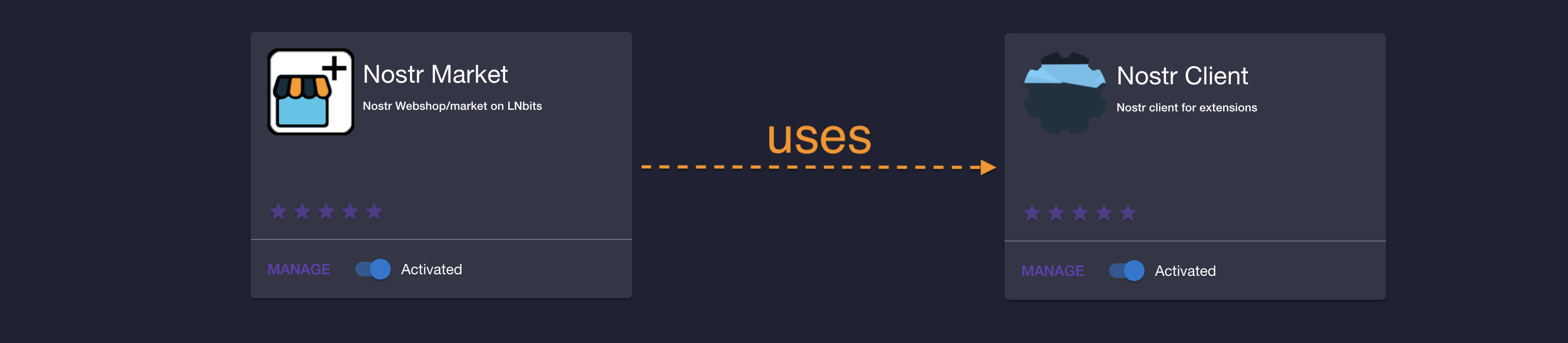
This extension uses the LNbits [nostrclient](https://github.com/lnbits/nostrclient) extension, an extension that makes _nostrfying_ other extensions easy.
|
|
|
|
Before you continue, please make sure that [nostrclient](https://github.com/lnbits/nostrclient) extension is installed, activated and correctly configured.
|
|
[Nostrclient](https://github.com/lnbits/nostrclient) is usually installed as admin-only extension, so if you do not have admin access please ask an admin to confirm that [nostrclient](https://github.com/lnbits/nostrclient) is OK.
|
|
|
|
|
|
## Create, or import, a merchant account
|
|
|
|
As a merchant you need to provide a Nostr key pair, or the extension can generate one for you.
|
|

|
|
|
|
Once you have a merchant "account", you can view the details on the merchant dropdown
|
|

|
|
|
|
## Create a Stall, or shop
|
|
|
|
To create a stall, you first need to set a _Shipping zone_. Click on the _Zones_ button and fill in the fields:
|
|

|
|
|
|
- Give your shipping zone a name
|
|
- Select to which countries does this _Shipping zone_ applies to (you can set a "Free" zone for digital goods)
|
|
- Select the unit of account. If your will list products in EUR, the shipping zone must be in the same currency
|
|
- Select the cost to ship
|
|
|
|
**Let's create the stall**
|
|
Click on _New Stall_ button and fill the necessary fields
|
|

|
|

|
|
|
|
- Give your stall/shop a name
|
|
- An optional description (this can be used by client to search shops)
|
|
- Select which wallet to use for this shop
|
|
- Select the unit
|
|
- select a Shipping Zone (multiple zones can be selected)
|
|
|
|
Click on the "Plus" button to open the stall details and click "New Product" to create a product
|
|

|
|
|
|
Fill the necessary fields on the dialog
|
|
|
|

|
|
|
|
- The product name
|
|
- Give it a description
|
|
- Add some categories (this can be used by clients to search for products)
|
|
- Supply an URL for your product image (you can upload an image but it's recommended that the images are hosted outside of LNbits)
|
|
- A price for the product, in the currency selected for the shop (this will be converted to sats when a customer buys)
|
|
- The quantity you have in stock, for the product. This will update when orders are made/paid
|
|
|
|
On the _Stall_ section you can also see (update or delete) the stall details in _Stall Info_ tab
|
|

|
|
|
|
Create, update or delete products in _Products_ tab
|
|

|
|
|
|
And check your orders on the _Orders_ tab
|
|
|
|

|
|
|
|
When you get an order, you can see the details by clicking on the "Plus" sign for the order
|
|
|
|

|
|
|
|
- Ordered products
|
|
- The order ID
|
|
- Customer's shipping address
|
|
- Customer's public key
|
|
- Invoice ID
|
|
|
|
If applicable, you can set as shipped when shipping is processed.
|
|
|
|
You also have a _Chat Box_ to chat with customer
|
|
|
|

|
|
|
|
## Diagon Alley Clients
|
|
|
|
LNbits also provides a Nostr Market client app. You can visit the client from the merchant dashboard by clicking on the "Market client" link
|
|

|
|
|
|
or by visiting `https://<LNbits instance URL>/nostrmarket/market`
|
|
|
|
## Troubleshoot
|
|
### Check communication with Nostr
|
|
In order to test that the integration with Nostr is working fine, one can add an `npub` to the chat box and check that DMs are working as expected:
|
|
|
|
https://user-images.githubusercontent.com/2951406/236777983-259f81d8-136f-48b3-bb73-80749819b5f9.mov
|
|
|
|
### Restart connection to Nostr
|
|
If the communication with Nostr is not working then an admin user can `Restart` the Nostr connection.
|
|
|
|
Merchants can afterwards re-publish their products.
|
|
|
|
https://user-images.githubusercontent.com/2951406/236778651-7ada9f6d-07a1-491c-ac9c-55530326c32a.mp4
|
|
|
|
|
|
## Aditional info
|
|
|
|
Stall and product are _Parameterized Replaceable Events_ according to [NIP-33](https://github.com/nostr-protocol/nips/blob/master/33.md) and use kind `30017` and `30018` respectivelly. See [NIP-45](https://github.com/nostr-protocol/nips/blob/master/45.md) for more details.
|
|
|
|
Order placing, invoicing, payment details and order statuses are handled over Nostr using [NIP-04](https://github.com/nostr-protocol/nips/blob/master/04.md).
|
|
|
|
Customer support is handled over whatever communication method was specified. If communicationg via nostr, [NIP-04](https://github.com/nostr-protocol/nips/blob/master/04.md) is used.
|